Nexus — Project Browser
Nexus is Key Light’s project and asset explorer. It acts as a bridge between your file system and your library: it scans your folders, detects compatible projects and files, generates thumbnails, and lets you assign everything into Key Light’s category tree with simple drag-and-drop. Mastering Nexus means mastering how you bring content into your library.
Opening Nexus
Nexus opens as a standalone window. It doesn’t block the main Key Light window—you can use both at the same time.
From the content area toolbar
The Nexus button in the top bar of the content area opens the Nexus window directly, without needing to switch to the Key Light Pro tab.
If Nexus is already open, clicking the access button again will bring the window to the front instead of opening a new instance. Only one Nexus window can be open at a time.
Nexus main window
The Nexus window opens at a default size of 1400×850 px and can be freely resized. It’s divided into two main areas, separated by a draggable divider:
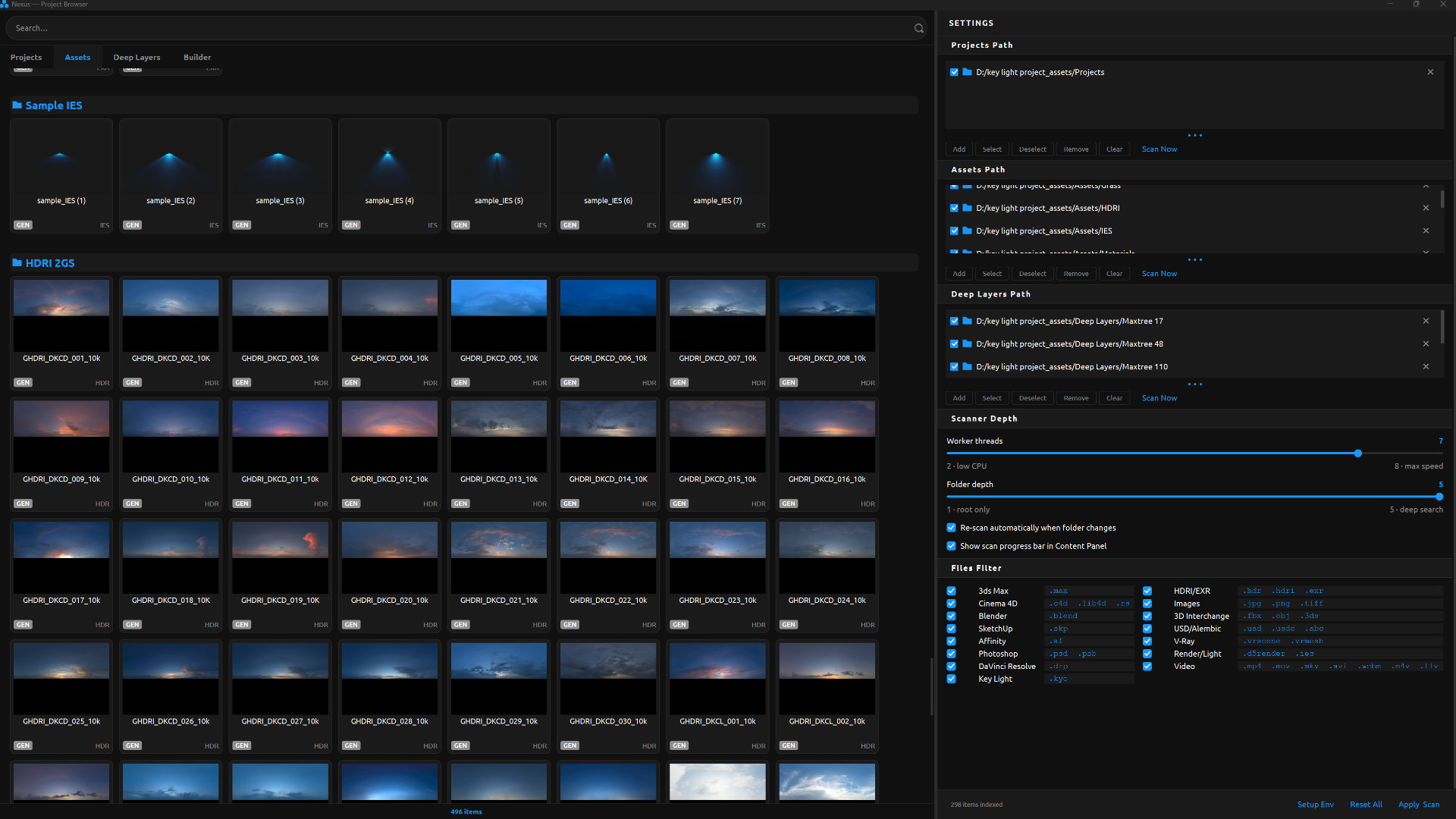
Left panel — Explorer
Contains the search bar and four tabs (Projects, Assets, Deep Layers, Builder). It takes up roughly 64% of the total width.
Right panel — Settings
A configuration panel where you define which folders to scan and adjust scanner behavior. It occupies the remaining 36% and can be hidden with Alt+P.
The search bar at the top of the left panel filters the active tab’s content in real time as you type.
Projects tab
Displays the projects detected in your project folders. Each project corresponds to a folder on disk that contains at least one supported software file. Projects are shown as 180×200 px cards arranged in a grid.
Project card anatomy
| Element | Description |
|---|---|
| Thumbnail | Project preview (168×126 px). Displayed if Nexus generated a thumbnail during scanning. If not, the main software icon is shown instead. |
| Name | The name of the project’s root folder, centered below the thumbnail. It’s truncated if too long. |
| Software badge | A colored label indicating the primary software detected in the folder (e.g., “3DS”, “C4D”, “BLD”, “PSD”). Each software has its own color. |
| File count | Number of supported files found within the project folder |
Software badges — visual reference
Folder headers
Cards are grouped under headers that display the name of the root scan folder where each project was found. The Track icon next to the header lets you open the exact location of that scanned folder.
Grid selection
- Single click
Selects a card. The selection is highlighted with a red border. - Click + drag (rubber band)
Drag from an empty area in the grid to draw a selection rectangle. All cards touched by the rectangle become selected. - Auto-scroll
If you drag the selection toward the top or bottom edge of the panel, the grid automatically scrolls to reach items outside the visible area.
Assets tab
Displays individual assets detected in your asset folders. Unlike the Projects tab (where each card represents an entire folder), in Assets each card corresponds to a single file—a “flat asset.”
Grid behavior, selection, folder headers, and drag-and-drop all work exactly the same as in the Projects tab. The difference lies in what each card represents:
| Concept | Projects | Assets |
|---|---|---|
| Smallest unit | A folder containing files | A single file |
| Card indicator | Number of files in the folder | File extension (.FBX, .MAX, etc.) |
| Path on selection | Project root folder | Exact file |
Deep Layers tab
Displays assets linked to folder structures managed by the DeepLayers module. If you’ve set up folders in DeepLayers, their scanned contents will appear here, organized in the same way as in the other tabs.
To populate this tab, you first need to configure Deep Layers folders in the Nexus Settings panel (Folders → Deep Layers folders) and run a scan.
Builder tab
Builder is Nexus’s built-in thumbnail generation tool. It converts images, HDR/EXR files, PSDs, and videos into optimized previews in JPG or PNG format for your library.
Adding files to Builder
- Drag and drop files
Drag one or more files from Windows Explorer directly into the empty Builder area. Supported formats include:
JPG · PNG · TIFF · BMP · WEBP · GIF · ICO · EXR · HDR · PSD · PSB · MP4 · MOV · MKV · AVI · WEBM · M4V · FLV - Use the file picker
Click on the empty Builder area to open the system file picker and select files manually. - Add more files
Once files are already listed, use the “+ Add more” button in the bottom bar to include additional files without removing existing ones.
File list — action bar controls
| Button | Action |
|---|---|
| Clear | Removes all files from the list (no undo) |
| Select | Checks all files in the list |
| Deselect | Unchecks all files |
| Remove | Removes only the checked files from the list |
| Open folder | Opens the output folder in Windows Explorer (available after conversion) |
| Convert | Starts converting all active files in the list |
Each row in the list
Each file entry includes:
- Checkbox
Marks the file for the next Remove action or for quick visual selection. - Status indicator
A symbol that reflects the file’s current state:
○ Pending · ◉ Processing · ✓ Completed · ✗ Error · ⚠ Skipped - Name and extension
File name and extension displayed in a monospace format. - File size
Original size in KB or MB, right-aligned. - Exposure (HDR/EXR only)
Numeric exposure adjustment with a spinbox. Lets you tweak exposure before conversion. Only appears for high dynamic range files. - Frame position (video only)
Time position (in seconds) of the frame to extract as a thumbnail. Only appears for video files. - ✕ button
Removes that specific file from the list without affecting the others.
Conversion settings
| Option | Values / Description |
|---|---|
| Output folder | Folder where generated thumbnails are saved. By default, a nexus_previews subfolder is created inside the original file’s directory. You can change it by typing a path or using the folder button. |
| Format | Output format: JPG (smaller size, no transparency) or PNG (higher quality, supports transparency). |
| Size limit | Maximum output file size. The slider lets you choose between: 256 KB, 320 KB, 384 KB, 448 KB, 512 KB, 576 KB, 640 KB, 704 KB, 768 KB, 896 KB, and 1 MB. Builder compresses the image to meet the selected limit. Default: 1 MB. |
File types — conversion behavior
| Type | Extensions | Behavior |
|---|---|---|
| Standard image | .jpg · .png · .bmp · .webp · .gif · .tiff · .ico | Direct conversion. The image is resized to meet the size limit and saved in the selected output format. |
| HDR / EXR | .hdr · .exr | High dynamic range conversion to a standard format. Exposure can be adjusted per file using the row’s spinbox. Maximum output resolution is 1920×1080 px. |
| Photoshop | .psd · .psb | The document is flattened (all layers merged) and exported as a flat image in the chosen format. |
| Video | .mp4 · .mov · .mkv · .avi · .webm · .m4v · .flv | A frame is extracted from the video. Frame position is controlled via the per-row seconds spinbox. Requires ffmpeg to be installed on the system. |
Video requirement
Frame extraction for videos in Builder requires ffmpeg to be installed on your system. If it’s not installed, video files will appear with a ⚠ (skipped) status. Use “Setup Env” in the Nexus Settings panel to configure the environment.
Progress bar
During conversion, each row shows its individual status through the status indicator (○ → ◉ → ✓). A progress bar at the bottom of the Builder displays the overall progress of the batch.
Settings panel
The Settings panel occupies the right side of the Nexus window. It contains three collapsible sections: Folders, Scanner, and Detection. Changes are not applied until you click Apply & Scan.
To hide or show the Settings panel without closing it, use Alt+P. You can also drag the central divider to adjust the layout.
Folders section — configure directories
This is where you define which folders on your disk should be scanned for Projects, Assets, and Deep Layers. All three lists behave the same way.
Add a folder
- Click “Add”
Opens the system directory picker. - Navigate and select the root folder
Choose the folder that contains your projects or assets. You don’t need to select subfolders individually—Nexus scans them based on the Scanner settings. - Folder appears in the list
You’ll see the full path along with an activation checkbox. Folders are enabled by default.
Folders section controls
| Control | Action |
|---|---|
| Checkbox (per folder) | Enables or disables a folder for scanning. Disabled folders remain in the list but are not scanned. |
| Add | Opens the directory picker to add a new folder. |
| Select | Enables all folders in the list. |
| Deselect | Disables all folders in the list. |
| Remove | Removes all folders that are currently checked. Only available if at least one folder is selected. |
| Clear | Removes all folders from the list at once. |
| Scan Now | Starts scanning immediately using current settings, without needing to click Apply & Scan. Only active if at least one folder is selected. |
Tip
The Projects, Assets, and Deep Layers lists are independent. The same folder can appear in multiple lists if it contains both project files and standalone assets.
Resizing the list
The three-dot separator below the folder list acts as a resize handle. Drag it up or down to adjust the height of the folder list without affecting the rest of the panel.
Scanner section — adjust scanning behavior
Controls how the Nexus scanner behaves when analyzing your configured folders.
Worker threads
Number of parallel threads used during scanning. Range: 2 to 8.
2 — lower CPU usage · 8 — maximum speed
Using more threads speeds up scanning large folders but increases CPU usage. On lower-core systems, keeping it between 2–4 helps avoid slowdowns during scanning.
Folder depth
Maximum subfolder depth the scanner will explore. Range: 1 to 5.
1 — root only · 5 — deep scan
A depth of 1 scans only direct children of the root folder. A depth of 3 (default) covers most typical project structures. Use 5 only if your projects have deeply nested folders.
Re-scan automatically
When enabled, Nexus automatically detects changes in configured folders and re-scans when needed. Useful if you frequently add new projects and don’t want to trigger scans manually.
Show scan progress bar
Displays a progress bar in Key Light’s main content area during active scans. Disable it if you prefer scans to run in the background without visual indicators in the main window.
Detection section — detected formats
Controls which software types and file formats Nexus recognizes during scanning. Each entry includes a checkbox to enable or disable it.
| Software / Type | Detected extensions | Can be disabled |
|---|---|---|
| 3ds Max | .max | Yes |
| Cinema 4D | .c4d · .lib4d · .rs | Yes |
| Blender | .blend | Yes |
| SketchUp | .skp | Yes |
| Affinity | .af | Yes |
| Photoshop | .psd · .psb | Yes |
| DaVinci Resolve | .drp | Yes |
| Key Light | .kyo | No — always active |
| HDRI / EXR | .hdr · .hdri · .exr | Yes |
| Images | .jpg · .png · .tiff | Yes |
| 3D Interchange | .fbx · .obj · .3ds | Yes |
| USD / Alembic | .usd · .usdc · .abc | Yes |
| V-Ray | .vrscene · .vrmesh | Yes |
| Render / Light | .d5render · .ies | Yes |
| Video | .mp4 · .mov · .mkv · .avi · .webm · .m4v · .flv | Yes |
The .kyo (Key Light) format is always enabled and cannot be turned off. It’s Nexus’s native format for storing metadata of scanned projects.
Disable formats you don’t use to speed up scanning. For example, if you only work with 3ds Max and Cinema 4D, turning off Blender, Affinity, DaVinci, etc., can significantly reduce scan times in large directories.
Scanning folders
Scanning analyzes your configured folders, detects projects and assets, and displays them across the Nexus tabs. There are three ways to start a scan:
Apply & Scan
Saves your current configuration (folders, scanner, detection) and runs a full scan of all active folders. This is the main action in the Settings panel.
Scan Now
Available in the Folders section. Starts a scan immediately using the current settings without saving them. Useful for testing changes.
Automatic re-scan
If “Re-scan automatically” is enabled in the Scanner section, Nexus will trigger scans automatically when it detects changes in your folders.
During scanning
- Per-tab progress bar
Each tab (Projects, Assets, Deep Layers) shows its own progress bar while scanning. Tabs not currently scanning display their normal content. - Real-time results
As the scanner finds projects or assets, cards appear in the grid instantly—you don’t have to wait for the full scan to finish. - Deferred thumbnail loading
Cards initially show a software icon. Thumbnails are generated in the background and replace the icon once ready, keeping the interface responsive during large scans. - Cached scan data
Nexus uses an internal database (nexus_index.sqlite) to store scanned results. On re-scan, only changed folders are processed—everything else loads instantly from the database.
Reset All — reset database
The Reset All button completely clears Nexus’s internal database. After resetting, the next scan will process everything from scratch.
Warning
Reset All does not affect your Key Light library or any files on disk. It only clears Nexus’s internal index. However, you will lose your project-to-category assignments and will need to reassign them manually.
Assigning projects to categories
Once you have projects or assets in Nexus, the next step is to assign them to Key Light’s category tree so they appear in the content area when a category is selected.
Drag from Nexus to the Assets Manager
- Select cards in Nexus
Click a card or use rubber-band selection to select multiple items in the Nexus grid. - Drag to the target category
Hold the left mouse button and drag the selected cards from Nexus into a category or subcategory in the Assets Manager (main Key Light window). The target category highlights when you hover over it. - Drop
Release the mouse over the category. The projects are assigned and will appear in the content area when that category is selected. The category badge updates accordingly.
Multiple assignment
A single project can be assigned to multiple categories without being duplicated on disk. For example, a residential project can belong to both “Projects > Residential” and “Assets > 3D Assets” at the same time.
Removing a project from a category
To remove a project, select it in Key Light’s content area and use the context menu → “Remove from [subcategory]”. The project remains available in Nexus but no longer appears in that category.
The .kyo format
The .kyo format is Nexus’s native format for storing metadata of scanned projects. Nexus automatically generates one .kyo file per project in Key Light’s internal data storage.
| Feature | Details |
|---|---|
| Purpose | Stores scan results: name, path, detected formats, main software, thumbnail, scan date, and integrity data |
| Generated by | Automatically created by Nexus during scanning—no manual action required |
| Location | Stored in Key Light’s internal data folder, not inside your original project directories |
| Relation to project | Acts as an index—it does not contain project files, only metadata. If the project changes, Nexus regenerates the .kyo on the next scan |
| Detection in Nexus | Projects with an existing .kyo are loaded directly from the index without re-scanning, making Nexus startup much faster |
Recommended workflows
First-time setup — configure and scan everything
- Open Nexus and the Settings panel
Make sure the right panel is visible. If not, press Alt+P. - Add root folders in the Projects section
Click “Add” and select the folders where your projects are stored. Add as many as needed. - Add folders in the Assets section (if applicable)
If you keep standalone assets (FBX, OBJ, images, HDRIs) separate from your projects, add those folders here. - Adjust the Scanner settings
Set the folder depth based on your structure. For most setups, a depth of 3 is enough. Increase worker threads if your system has 8+ cores. - Disable unused formats in Detection
If you don’t use formats like SketchUp or DaVinci, turn them off to reduce scan time. - Click Apply & Scan
Nexus saves your settings and starts scanning. Cards will begin appearing as the scan progresses.
Daily use — adding new projects
- Open Nexus
If “Re-scan automatically” is enabled and the folder is already configured, new projects should appear automatically. Otherwise, click “Scan Now” in the Folders section. - Locate the new project
Use the Nexus search bar to find it by name if you have many projects. New entries may appear with a placeholder (software icon) while the thumbnail loads. - Assign it to a category
Drag the project card into the appropriate category in the Assets Manager.
Generate thumbnails for projects without previews
- Prepare preview images
Export a render or screenshot of your project in JPG, PNG, or TIFF format. Recommended resolution: 1920×1080 px or higher. - Open the Builder tab in Nexus
Go to the Builder tab inside the Nexus window. - Drag images into Builder
Drop your renders directly into the Builder area. - Set the output folder
Choose where thumbnails will be saved. Ideally, use the root folder of each project so Nexus can detect them automatically on the next scan. - Choose format and size limit
JPG at around 512 KB offers a good balance between quality and file size for most previews. - Click Convert
Builder generates the thumbnails. Then re-scan your folders so Nexus can associate them with the correct projects.
Pro tip
If you place a thumbnail inside a project’s root folder named preview.jpg or preview.png, Nexus will automatically detect it as the project thumbnail on the next scan—no manual assignment needed.