Iris — VR 360° Viewer
Iris is the built-in spherical image and high dynamic range viewer in Key Light. It renders equirectangular images onto an interactive 3D sphere in real time using OpenGL, allowing you to inspect HDRIs, panoramas, EXR textures, and Photoshop files with accurate color and full exposure control.
What Does Iris Do?
Iris loads any compatible image and projects it onto the inside of a virtual sphere. The camera is positioned at the center of that sphere, allowing you to look around in every direction as if you were inside the image. This makes it especially useful for:
Evaluating HDRIs
Inspect 360° lighting panoramas to assess their quality, dynamic range, and light distribution before using them in your projects.
Reviewing panoramas
Navigate through equirectangular environment images to check for seams, distortions, or visual artifacts.
Inspecting EXR files
View EXR files with exposure control to analyze render passes, light maps, or high dynamic range images.
Previewing PSD files
Flatten and display Photoshop documents with all their layers—without needing to open them in Photoshop.
Opening Iris
There are two ways to open Iris:
A. From the vertical toolbar
Click the Iris button (blue icon) in Key Light’s sidebar. Iris opens empty, ready to load an image via drag & drop or from the context menu.
B. From an asset’s context menu
Right-click a compatible asset in the content area and select “Open with Iris.” This option only appears automatically for supported file types. Iris opens with the selected image already loaded.
If Iris is already open when you choose “Open with Iris,” the window is brought to the front and loads the new file, replacing the previous one. Multiple instances are not opened simultaneously.
Iris Interface
Iris features a clean, minimal interface at 1280×720 px, made up of three main elements:
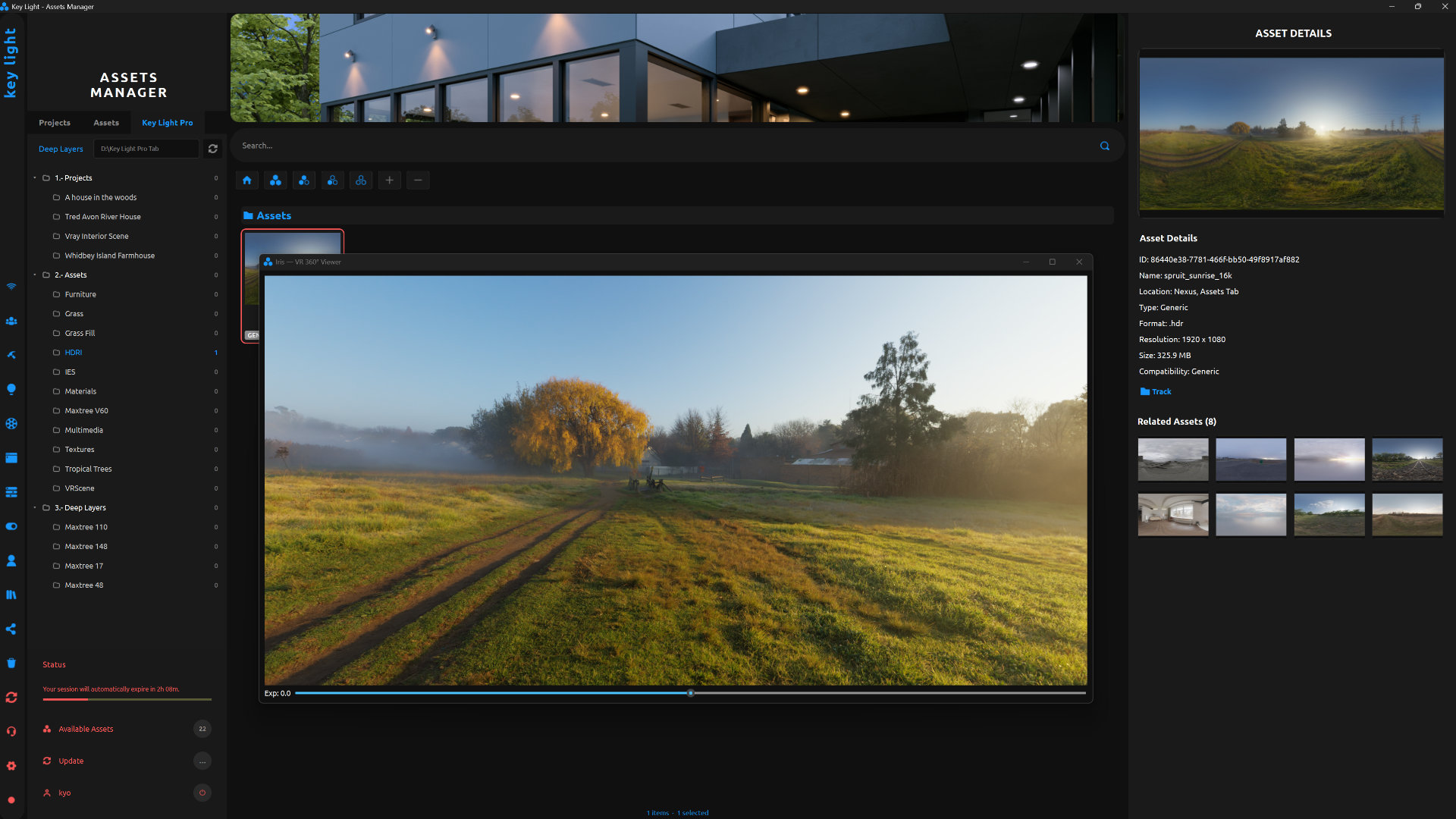
The HDR image you see in Iris is provided by https://polyhaven.com/
Interface Elements
| Element | Description |
|---|---|
| Main Viewer | Occupies most of the window. Renders the loaded image onto a 3D sphere using OpenGL. Displays a dark background (#101010) when no image is loaded. |
| Progress Bar | A 6 px-high strip between the viewer and the controls. Appears in a pulsing animation while an image is loading. Automatically hides once loading is complete. |
| Exposure Label | Displays the current exposure value in the format Exp: X.X. Updates in real time as you move the slider. |
| Exposure Slider | Horizontal control that adjusts the exposure of the displayed image. Range: −20.0 to +20.0, with 0.1 increments. |
Loading Images
Method 1 — Drag & Drop
- Drag the file into the Iris window
Any supported file can be dragged directly from Windows Explorer into Iris. - Iris starts loading
The progress bar appears immediately with a pulsing animation. During loading, Iris temporarily disables additional drops to avoid overlapping operations. - Image appears in the viewer
Once loading is complete, the bar disappears and the image is projected onto the sphere. The initial view is centered (yaw = 0, pitch = 0).
Method 2 — Open with Iris (from Key Light)
Right-click a compatible asset in the content area → “Open with Iris.”
Iris loads the file directly—no drag & drop required.
Tip
You can load a new image over an existing one—just drag it onto the viewer. The previous image will be replaced.
360° Navigation — Mouse Controls
All navigation in Iris is mouse-based. There are no on-screen buttons—the entire viewer is interactive.
| Action | Control | Behavior |
|---|---|---|
| Rotate view (yaw + pitch) | Left-click + drag | Rotates the camera inside the sphere. Horizontal drag changes yaw (−∞ to +∞). Vertical drag changes pitch, limited to ±90° to avoid gimbal lock at the poles. |
| Zoom (field of view) | Mouse wheel | Adjusts the field of view (FOV). Range: 10° (max zoom) to 120° (wide view). Default: 60°. Each scroll step changes FOV by 5°. |
Pitch is limited between −90° and +90° (the sphere’s poles). Iris applies a small safety margin (0.01 rad) to prevent reaching exact pole positions, where equirectangular projection becomes ambiguous.
Exposure Control
The exposure slider at the bottom adjusts the brightness of the image. This is especially important for HDR/EXR images, which often contain luminance values far beyond what standard monitors can display.
| Parameter | Value |
|---|---|
| Range | −20.0 to +20.0 |
| Step | 0.1 (internally −200 to +200, divided by 10 for display) |
| Default | 0.0 (no adjustment) |
| Update | Real-time while dragging |
| Gamma | Fixed at 2.2 (applied internally, not adjustable) |
For HDR / EXR images
Start at 0.0. Lower the value if the image is overexposed, or increase it if it’s too dark. Outdoor HDRIs typically look correct between −2.0 and −5.0.
Zoom — Field of View (FOV)
The mouse wheel controls the field of view (FOV), which determines how much of the sphere is visible at once.
| FOV | Visual Effect | When to Use |
|---|---|---|
| 10° (min) | Very narrow view, maximum zoom | Inspect fine details in a specific area |
| 60° (default) | Natural perspective | General navigation and evaluation |
| 120° (max) | Very wide view, slight fisheye distortion | Get overall context and transitions |
Supported Formats
High Dynamic Range (HDR)
Floating-point, linear data. Exposure control has the greatest effect here.
.hdr, .exr, .rgbe, .xyze
Standard Images (LDR)
8 or 16-bit images, normalized before projection.
.jpg, .jpeg, .png, .tiff, .tif, .bmp, .webp
Photoshop Documents
Flattened and displayed as a single image (layers are not preserved).
.psd
RGBA Images
Iris ignores the alpha channel in any format that includes it (such as PNG with transparency or TIFF with alpha). Only the RGB channels are displayed.
Asynchronous Loading — Progress Bar
Large files (EXR, layered PSDs) may take time to load. Iris handles this in a background thread to keep the UI responsive.
- Start loading
The progress bar appears in pulsing mode (no percentage, since it’s a single operation). - During loading
Drag & drop is temporarily disabled to prevent conflicts. - Load complete
The bar disappears, drag & drop is re-enabled, and the image is rendered. - Load error
If the file fails to load (unsupported, corrupted, inaccessible), the viewer remains unchanged. No error message is shown.
LDR vs HDR Behavior in Iris
| Aspect | LDR Images | HDR Images |
|---|---|---|
| Value range | 0.0 to 1.0 | Can exceed 1.0 (no upper limit) |
| Exposure at 0.0 | Usually correct | May appear too bright or too dark |
| Slider usefulness | Fine adjustments | Full range useful for exploration |
Grayscale images are automatically converted to RGB by duplicating the channel.
Use Cases
Evaluating an HDRI Before Rendering
- Open the HDRI in Iris
- Adjust exposure (−3.0 to −6.0 typical)
- Navigate the sphere to inspect lighting, sun position, seams
- Zoom in to check fine details
Inspecting a Photographic Panorama
Load the JPG/PNG/TIFF directly. With exposure at 0.0 and FOV at 60°, you get a natural view. Navigate to check seams, vertical projection, and overall lighting.
Reviewing a Render EXR
Start at exposure 0.0, then adjust depending on the area you want to evaluate. Use a low FOV (10°–30°) to inspect detailed textures or lighting artifacts.