Backup — Local Backup Manager
The Backup module protects your Key Light library and working files by creating local copies of the folders you choose. It copies your files to a destination you define, generates a verification manifest for each backup, and lets you pause and resume long operations without losing progress
What Backup Does — and Doesn’t Do
What it DOES
• Copies entire folders to your chosen destination
• Generates a verification manifest for each backup
• Allows pausing and resuming without losing progress
• Detects already copied files on restart to avoid duplicating work
What it DOES NOT do
• It does not sync changes in existing files (this is a copy, not a sync)
• It does not upload files to the cloud (that’s handled by Cloud Backup)
• It does not compress copied files
• It does not automatically manage multiple versions
Backup copies your original files to the destination exactly as they are on disk. It does not modify or delete them from their original location.
Opening Backup
The Backup module opens as a fixed 800×680 px window from the Local Backup button in Key Light’s vertical toolbar. Only one instance of the window can be open at a time.
When opened, Key Light automatically loads the previously saved backup plan (source and destination folders), if one exists.
The Interface — Full Overview
The Backup window is divided into four vertically stacked sec
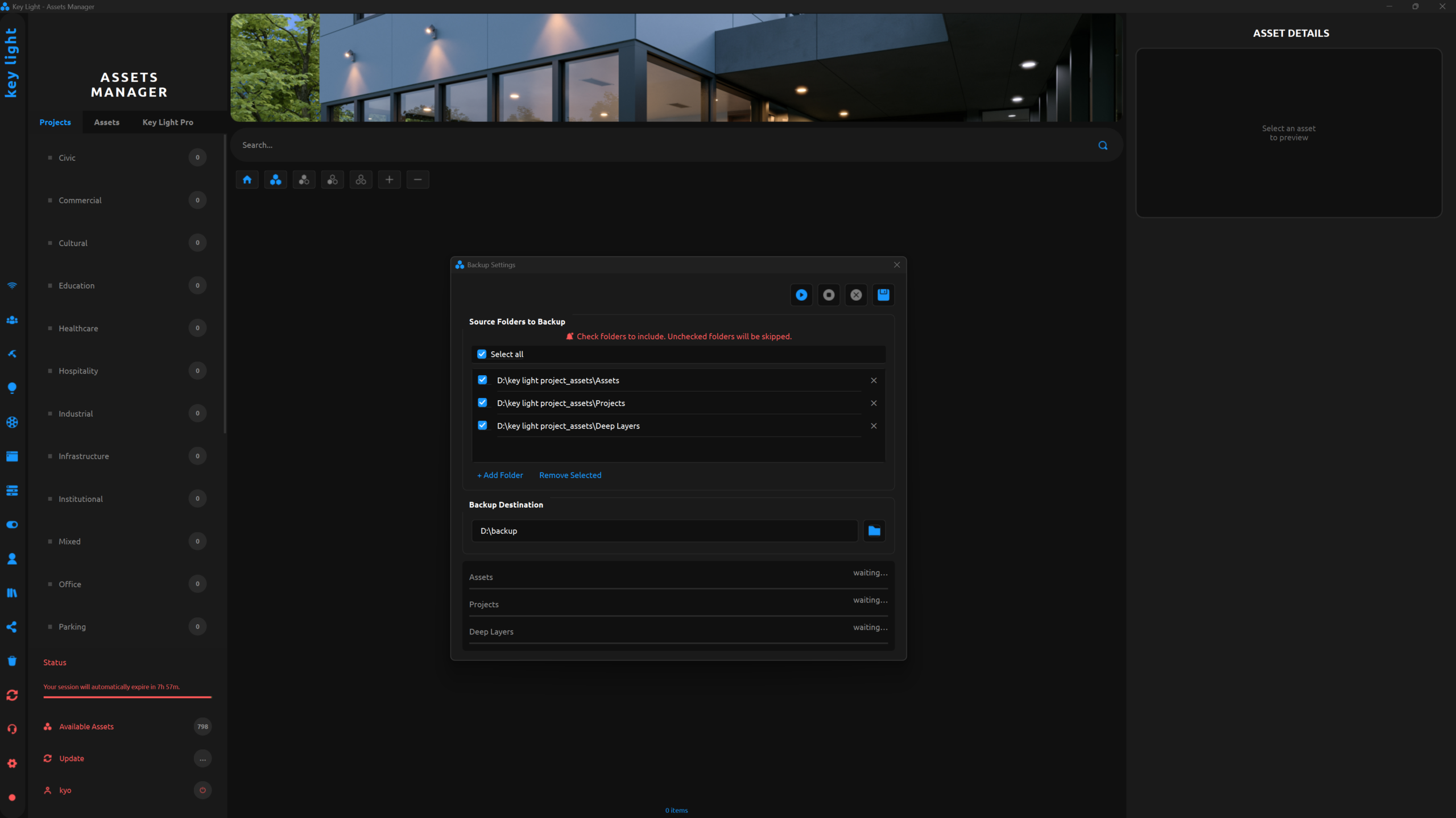
Source Folders Section — Folders to Back Up
The Source Folders section occupies the main area of the window (fixed height of 310 px with a scrollable list). This is where you define which folders on your system will be included in the backup
Adding Folders
- Click “+ Add Folder”
This opens your operating system’s directory picker. - Browse and select a folder
Choose any folder on your drive. Key Light checks that the folder exists before adding it. If the path doesn’t exist, a warning is shown. - The folder appears in the list
It’s added with its checkbox enabled (active) by default. The full path is displayed in the row. Duplicate folders cannot be added.
Controls for Each Folder Row
| Control | Behavior |
|---|---|
| Checkbox | Enables or disables the folder for the next backup. Unchecked folders are completely ignored—they won’t be copied or shown in the progress area. Changing the state automatically rebuilds the progress view to reflect only active folders. |
| Folder Path | Displays the full path of the selected directory (informational only). |
| ✕ Button | Removes the folder from the list. The original folder on disk is not affected. |
“Select All” Checkbox — Three States
The “Select All” checkbox in the list header has three possible states:
| State | Condition |
|---|---|
| Checked (✓) | All folders in the list are enabled. |
| Unchecked (☐) | No folders are enabled. |
| Indeterminate (—) | Some folders are enabled and others are not. Clicking once enables all; clicking again disables all. |
Removing Folders from the List
| Action | What it does |
|---|---|
| ✕ button in a row | Removes that specific folder from the list. |
| Remove Selected | Removes all folders from the list whose checkboxes are enabled (i.e., active folders, not disabled ones). |
Note
“Remove Selected” removes folders that are currently checked. If you only want to disable folders without removing them, uncheck their boxes instead of using this button.
Backup Destination — Target Location
The destination is the folder where Key Light will create copies of your files. It can be any accessible drive: external disk, NAS, secondary partition, etc.
A. Enter the path manually
Click the text field and type or paste the full destination path.
B. Use the folder picker
Click the folder icon on the right side of the field to open the system directory picker.
Recommendation
Use a different drive from the one that stores your original files. If both are on the same physical disk and it fails, you could lose both the originals and the backup.
The default destination folder is Key Light Backups inside your user directory.
Backup Folder Structure
When you run a backup, Key Light creates the following structure inside the destination folder:
E:\Backups\KeyLight\
  key_light_backup_apr_10_2026_14h32m\
    studio_apr_10_2026_14h32m\
      [copy of all files from C:\Projects\Studio]
    library_apr_10_2026_14h32m\
      [copy of all files from C:\Assets\Library]
    manifest.json
The root backup folder follows the format:
key_light_backup_month_day_year_hhmm
Each source folder gets its own subfolder with a matching timestamp format. The manifest.json file contains a complete record of all files included in the backup.
Progress Area — Folder-Level Tracking
The progress area at the bottom of the window displays an individual progress bar for each active folder (those with the checkbox enabled). It automatically rebuilds whenever you change the checkbox states.
Each progress row shows the folder name (only the last part of the path) and its current status to the right of the bar.
Possible Status States for Each Progress Bar
Waiting
waiting…
The folder is queued and has not yet been processed. The bar appears gray at 0%.
Active
73%
The folder is currently being copied. The bar is blue and updates in real time.
Done
✓ done
The copy completed successfully. The bar reaches 100% in blue, and the status text turns green.
Failed
✗ failed
An error occurred during copying. The bar turns red and the status indicates a failure.
Paused
⏸ paused
The backup was stopped using Stop. Progress is preserved, and the bar remains gray at the last reached percentage.
Cancelled
◼ cancelled
The backup was cancelled using Cancel. Progress is discarded, and the bar remains gray.
The Three Control Buttons
The three buttons in the top bar control the entire backup lifecycle. Their availability changes depending on the current state:
| Button | Available When | Behavior |
|---|---|---|
| ▶ Start Backup | No backup is currently running | Starts copying the selected folders to the destination. If a checkpoint from a previous backup (stopped with Stop) exists, it resumes from where it left off instead of starting over. |
| ⏹ Stop Backup | A backup is currently running | Stops the backup at the current file and saves a checkpoint with the exact progress. The next Start resumes from that point. Files already copied remain in the destination. |
| ✕ Cancel Backup | A backup is running OR an unfinished checkpoint exists | Stops the backup (if running) and discards the checkpoint. The next Start begins a completely new backup from scratch. A confirmation dialog is shown before proceeding. |
Stop ≠ Cancel
Stop pauses and saves progress (so you can resume later).
Cancel discards progress (next run starts from zero).
In both cases, files already copied to the destination are never deleted.
Running a Backup
Full Workflow
- Set up source folders
Make sure the folders you want to back up are in the list and checked. Unchecked folders are ignored. - Verify the destination
Confirm that the Backup Destination points to the correct location—ideally a different drive from your original files. - Click ▶ Start Backup
The Start button is disabled, while Stop and Cancel become active. Progress bars switch from waiting… to active as each folder is processed. - Wait (or keep using Key Light)
The backup runs in the background on a separate thread. You can continue using Key Light normally while it progresses. Bars update in real time. - Completion
Once finished, all bars display ✓ done in green. The Start button becomes available again, and Key Light records the time of the last successful backup.
How Each Folder Is Processed
- Scanning
Key Light recursively scans all files in the folder, including subfolders. Files that can’t be read due to permissions are skipped without interrupting the process. - Checkpoint verification
If a checkpoint from a previous stopped backup exists, Key Light identifies already copied files and skips them, continuing only with pending ones. - File copying
Each file is copied to the destination while preserving the relative subfolder structure. Progress is reported file by file. - Checkpoint update
After each file is copied, the checkpoint is updated. This ensures progress is never lost if the process is interrupted.
Stop and Resume (Stop)
Stop lets you pause a long backup without losing progress—especially useful when you need disk performance for something else.
What happens when you press Stop
- Safe interruption
The current file finishes copying, then the process stops. No partial files are left behind. - Checkpoint saved
Key Light saves a checkpoint file with exact progress: which files are done, which remain, and the last processed file per folder. - Progress shows “⏸ paused”
Incomplete folders display their current percentage with a paused state. Completed ones remain as ✓ done. - Start resumes from checkpoint
The next time you press Start, Key Light detects the checkpoint and continues from where it left off—without re-copying completed files.
When to use Stop
Use Stop when you need to temporarily interrupt the backup—before putting your computer to sleep, during a video call that needs disk bandwidth, or when you need to close Key Light soon. The checkpoint persists across sessions.
Cancel and Discard (Cancel)
Cancel is different from Stop. While Stop preserves progress, Cancel permanently discards it.
What happens when you press Cancel
- Confirmation dialog
A warning appears:
“Files already copied to disk will be kept, but the next Start will begin a completely new backup.”
You must confirm to proceed. - Stops the backup (if running)
If a backup is in progress, it stops just like with Stop. - Checkpoint is deleted
The checkpoint file is permanently removed. No progress data is kept. - Next Start begins from scratch
Without a checkpoint, all folders are treated as new and everything is copied again.
Cancel is also available when no backup is running but a checkpoint from a previous Stop exists. In that case, it simply discards the checkpoint.
Important
Files already copied to the destination before pressing Cancel are not deleted. Cancel only removes the internal progress record, not the actual files.
What Backup Creates on Disk
Each successful backup creates the following structure in the destination folder:
key_light_backup_apr_10_2026_14h32m\
├── studio_apr_10_2026_14h32m\
│   ├── Project_A\
│   │   ├── renders\
│   │   │   └── final.png
│   │   └── scene.max
│   └── Project_B\
│       └── ...
├── library_apr_10_2026_14h32m\
│   └── [structure of C:\Assets\Library]
└── manifest.json
| Element | Description |
|---|---|
| Root backup folder | Automatically created in the destination using the format key_light_backup_month_day_year_hhmm. It contains everything from that backup run. |
| Subfolder per source | One subfolder for each selected source folder, named using the folder name in lowercase plus a timestamp. The full directory hierarchy is preserved. |
| manifest.json | Backup index file. Contains a list of all copied files, including their relative path, SHA-256 hash, file size, and last modified date. Stored in the root backup folder. |
The Manifest — What It Is and What It’s For
The manifest.json file is the verification record of the backup. It stores metadata for every copied file and allows you to verify the integrity of the backup without comparing each file manually against the original.
| Manifest Field | Description |
|---|---|
| backup_id | Unique backup identifier in timestamp format (YYYYMMDD_HHMMSS). |
| timestamp | Backup start date and time in ISO 8601 format. |
| backup_type | Type of backup: full (complete copy). |
| source_paths | List of source paths included in the backup. |
| file_count | Total number of files copied. |
| total_size | Total size (in bytes) of all copied files. |
| files | Full list of files. For each file: relative path, SHA-256 hash, size in bytes, and last modified timestamp. |
The SHA-256 hash for each file ensures the copy is identical to the original. If a file’s hash matches the one in the manifest, its integrity is confirmed.
Saving the Configuration
The save button (💾 icon) in the top bar stores your current backup plan: the list of source folders and the destination folder. This configuration persists automatically between Key Light sessions.
- What gets saved
All folder paths in the list (both checked and unchecked), the destination folder, and the checkbox state of each folder. - When it loads
When you open the Backup window, Key Light automatically loads the saved plan. You’ll see the same folders from your previous session already listed. - Where it’s stored
In a file called backup_plan.json inside Key Light’s internal data directory. No manual management is required.
Tip
Save your configuration every time you add or remove source folders so you don’t have to set everything up again later.
Recommended Workflows
First Backup — Initial Setup
- Open Backup from the toolbar
Click the Local Backup button (blue icon) in Key Light’s vertical toolbar. - Add source folders
Use “+ Add Folder” to include everything you want to protect: your asset library, active projects, Key Light’s data folder, etc. Add as many as needed. - Choose the destination
Set the backup location. Recommended: an external drive or a different partition from your originals. - Save the configuration
Click the 💾 icon to save your plan. You only need to do this once. - Start the backup
Click ▶ Start Backup. Depending on your data size, this may take anywhere from minutes to hours. You can minimize the window and keep working.
Routine Backup — Weekly
- Connect your backup drive (if external)
Plug in the storage device where you keep your backups. - Open Backup
Your previous configuration loads automatically. - Verify the destination
If the external drive has the same drive letter as before, you’re good to go. If not, update the destination path. - Start Backup
Key Light creates a new backup folder with the current timestamp and copies all files. Previous backups on the same drive remain untouched.
Interrupted Backup — How to Resume
- If you stopped it with Stop
Open Backup. The Cancel button will be active (indicating a checkpoint exists). Simply click ▶ Start Backup—Key Light will automatically resume from where it left off. - If you want to start fresh instead
Click Cancel to discard the checkpoint and confirm the dialog. Then click Start to begin a completely new backup.
What to Back Up — Recommendations
| Folder | Why Back It Up |
|---|---|
| Your asset library | Downloaded, purchased, or created assets are often difficult or impossible to recover if a drive fails. |
| Your active projects | All ongoing work that isn’t stored elsewhere (e.g., cloud or version control). |
| Key Light data folder | Contains your library database, Deep Layers templates, presets, and Nexus configuration. Backing it up allows you to fully restore Key Light if you reinstall your system. |