Deep Layers — Folder Structure Manager
Deep Layers is Key Light’s folder structure manager. It lets you visually design directory hierarchies, apply them to disk with a single click, and keep them consistent over time. It’s the module that turns your workflow into a standardized, repeatable system.
What does Deep Layers do?
Deep Layers solves a common problem in studios and production teams: inconsistent folder structures across projects. Without a standard, every project ends up organized differently, making it harder to find files, onboard collaborators, and keep your Key Light library consistent.
With Deep Layers, you can:
Design structure
Visually build folder hierarchies up to five levels deep using drag and drop—without affecting your disk.
Apply to disk
Create the selected folder structure anywhere on your system with a single click. Existing folders are automatically skipped.
Synchronize
Compare your designed structure with what already exists on disk and apply only the differences. Ideal for updating existing projects.
Opening Deep Layers
Deep Layers opens as a standalone window (1400×850 px). It doesn’t block Key Light—you can use both at the same time.
- From the Key Light Pro tab (Assets Manager)
In the Key Light Pro tab of the Assets Manager, use the corresponding button or action to open Deep Layers. This is the main entry point within Key Light. - From Nexus integration
In the Deep Layers tab inside the Nexus window, you can access Deep Layers directly to manage linked folder structures.
Interface — full overview
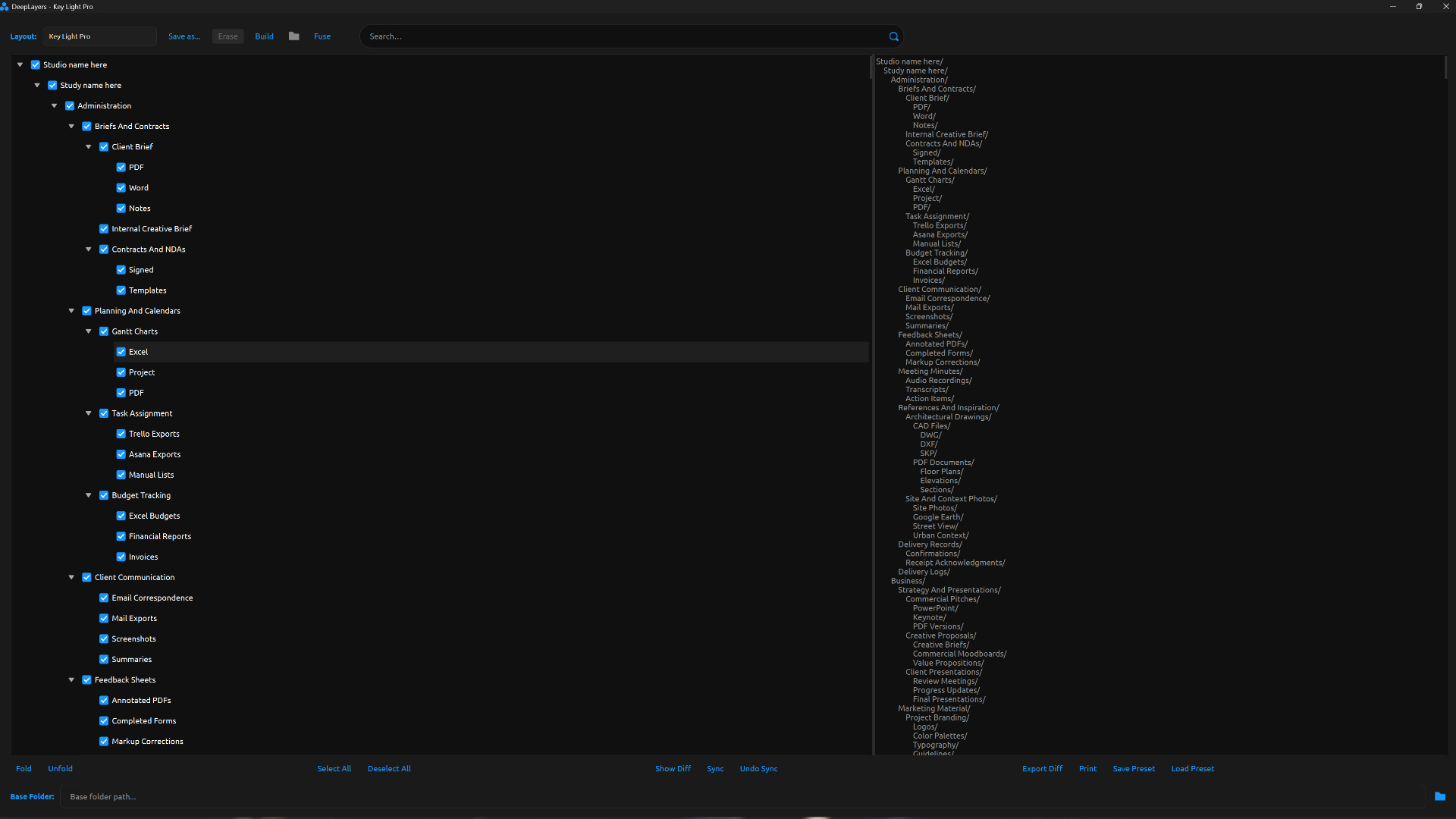
The Deep Layers window is divided into three vertical sections: a top bar, a central content area, and a bottom bar.
Structure tree
The tree is the core element of Deep Layers. Each node represents a folder, and nodes can be nested up to five levels deep.
Node properties
| Property | Description |
|---|---|
| Checkbox | Controls whether the folder is included in Build and Sync operations. Checking a parent node automatically selects all its children. Unchecking a parent deselects the entire branch. |
| Name | The folder name as it will appear on disk. Editable with a double click. Invalid Windows characters (/ \ : * ? ” < > |) are automatically replaced with spaces. |
| Level | The position in the hierarchy (0 = root, 1 = child, etc.). Determines where the folder is created relative to the Base Folder. |
| Expanded / collapsed | Nodes with children include an expand arrow. Collapsing a node hides its children visually, but they remain part of the structure. |
Preview panel
The text panel on the right side of the tree shows a real-time textual representation of the structure, limited to the nodes checked with the checkbox. Each line corresponds to a folder that will be created, and indentation reflects the hierarchy level. The panel updates automatically as you edit the tree or change checkbox states.
The preview panel shows exactly which folders will be created—use it as a visual confirmation before running Build or Sync.
Templates — prebuilt structures
The “Layout” selector in the top bar contains all available templates. When you select one, the tree reloads with that structure. Deep Layers includes three protected templates that cannot be deleted, along with any custom templates you create.
Template: Projects
A folder structure designed to organize projects by architectural typology. It includes 20 top-level categories, each with its own specific subcategories:
Projects/
- Civic/ → City Hall · Courthouse · Embassy · Fire Dept · Police
- Commercial/ → Business Ctr · Cowork · HQ · Offices
- Cultural/ → Art Gallery · Auditorium · Cultural Center · Museum · Theater
- Education/ → Campus · Library · School · Technical Inst · University
- Healthcare/ → Clinic · Hospital · Lab · Rehab
- Hospitality/ → Boutique Hotel · Hotel · Resort
- Industrial/ → Factory · Industrial Park · Logistics · Warehouse
- Infrastructure/ → Airports · Bridges · Dams · Energy · Highways · Ports · Railways · Transit · Utility · Water
- Institutional/ → Gov Building · Public Agency · Admin Center
- Mixed/ → Com+Off · Integrated Dev · Res+Com · Res+Off
- Office/ → Business Hub · Corporate Office · Flex Space
- Parking/ → Parking Garage · Surface Parking
- Public Space/ → Park · Plaza · Promenade
- Recreation/ → Marina · Waterfront · Leisure Center
- Religious/ → Cathedral · Church · Mosque · Temple
- Residential/ → Cabins · Condominiums · Detached · Multi-family · Social Housing · Villas
- Retail/ → Mall · Showroom · Shopping Ctr · Store
- Sports/ → Gymnasium · Sports Complex · Stadium · Swimming Pool
- Transport/ → Bus Station · Metro · Railway · Airport
- Urban/ → District · Mixed-use · Masterplan · Neighborhood
Template: Assets
A folder structure designed to organize a 3D asset library by type, with subfolders for styles or variations:
Assets/
- 2D Vegetation/ → Bushes · Flowers · Grass · Ground Cover · Trees · Vines
- 3D Assets/ → Accessories · Animals · Architecture · Characters · Furniture · Industrial · Lighting Objects · Transportation · Vegetation
- Atlases/ → Damage · Foliage · Grunge · Imperfection · Leak
- Audio/ → Ambient · Foley · Music · Sound Effects
- Blueprints/ → CAD Blocks · Construction Details · Technical Drawings
- Decals/ → Dirt · Graffiti · Leaks · Puddles · Stains · Surface Damage
- Displacement/ → Architectural · Ground · Rock · Tile Patterns
- Environments/ → Backplates · Cityscapes · Landscapes · Skydomes
- FX/ → Dust · Fire · Fog · Rain · Smoke
- HDRI/ → Daylight · Night · Studio · Sunrise · Sunset
- Imperfections/ → Dirt · Dust · Fingerprints · Rust · Scratches · Smudges · Water Drops · Wet Surfaces
- Lighting/ → IES Profiles · Light Fixtures · Light Rigs · Studio Setups
- Materials/ → Brick & Masonry · Ceramic · Composite · Concrete · Fabric · Glass · Metal · Stone · Wood
- Media/ → Animations · Images · Videos
- Presets/ → Camera · Lighting · Render · Scene
- Proxies/ → High-poly · Low-poly · Placeholder
- Scans/ → Architecture · Nature · Objects · People
- Scatter/ → Debris · Plants · Rocks · Urban
- Shaders/ → Environment · Material · Post-Process · Surface
- Textures/ → Albedo · AO · Displacement · Metalness · Normal · Roughness · Specular
Template: Key Light Pro
A five-level folder structure designed to organize an entire studio, including administrative documentation, production files, and project assets. It’s built for teams that need to standardize their internal workflow—from contracts to final render outputs.
The three protected templates cannot be deleted from the interface. The “Erase” button is disabled whenever one of them is selected.
User templates
Any structure you save using “Save as…” becomes a user template. It appears in the Layout selector alongside the protected ones and can be removed using the Erase button.
Custom mode — build from scratch
The last item in the Layout selector is Custom. When selected, the tree is cleared and the preview panel shows a help message with available shortcuts. In Custom mode, you build your structure freely from scratch.
If you have unsaved changes in Custom mode and select another template, Deep Layers will prompt you to save before switching. You’ll have three options: Save (save and switch), Discard (discard changes and switch), or Cancel (abort the action).
Editing the tree — node actions
There are three ways to modify the tree: via the context menu (right-click), keyboard shortcuts, and dragging nodes.
Context menu on a node
Click here to add your own text
Add Parent
Add Child
Duplicate
Rename
Delete
Copy
Cut
Paste
Click on empty area
Add Root
Paste
Context menu actions
| Action | Behavior |
|---|---|
| Add Root | Adds a level 0 (root) node to the tree. Available only when right-clicking on an empty area. |
| Add Parent | Inserts a new node above the selected node, making it its parent. The original node becomes a child of the new one. |
| Add Child | Adds a new child node under the selected node. The parent expands automatically to reveal it. |
| Duplicate | Creates a copy of the selected node (including all its children) and inserts it directly below. The duplicate name includes the suffix “(Copy N)”. |
| Rename | Enables inline editing of the node name. Equivalent to double-clicking. Invalid characters are automatically cleaned when confirmed. |
| Delete | Removes the node and all its children. Prompts for confirmation before proceeding. |
| Copy | Copies the node and its full hierarchy to Deep Layers’ internal clipboard. |
| Cut | Cuts the node to the clipboard. When pasted, it’s removed from its original location. |
| Paste | Pastes the clipboard content as a child of the selected node, or as a root if clicking on empty space. Only available when something is copied or cut. |
Drag & drop nodes
- Move a node
Drag any node to a new position within the tree. A drop indicator shows exactly where it will be placed. The tree auto-scrolls when you drag near the top or bottom edges. - Duplicate by dragging (Ctrl + drag)
Hold Ctrl while dragging a node to duplicate it instead of moving it. The copy is inserted at the target position with the “(Copy N)” suffix.
Folder naming rules — automatic cleanup
When creating or editing a node name, Deep Layers applies these rules to ensure it’s valid in Windows:
- Remove invalid characters
Characters like/ \ : * ? " < > |and control characters are replaced with spaces. - Collapse multiple spaces
Consecutive spaces are reduced to a single space. - Trim trailing dots and spaces
Windows does not allow folder names ending in a dot or space. - Empty name → “Folder”
If the name becomes empty after cleanup, “Folder” is used as the default name.
Search within the tree
The search bar in the top-right corner filters the tree in real time with a 300 ms debounce (it waits 300 ms after your last keystroke before applying the filter, avoiding unnecessary searches while typing).
- Match highlighting
Nodes containing the search term are highlighted in gray. Non-matching nodes remain visible but dimmed. The tree automatically expands to reveal matches inside collapsed nodes. - Result counter
The search bar displays the number of matches found (e.g., “12 / 87”). When there are more than 500 matches, it shows “500+” to avoid UI overload. - Clear search
Press Esc to clear the search field and restore the tree to its normal state. - Quick access
Press Ctrl+F from anywhere in Deep Layers to focus the search field and select all text.
Bottom action bar
The bottom bar has two rows: the first contains action buttons, and the second includes the base folder selector.
Group: Tree view
| Button | Action |
|---|---|
| Fold | Collapses all nodes at once. Useful for a high-level view of the root structure. |
| Unfold | Expands all nodes at once, revealing the full hierarchy. |
Group: Bulk selection
| Button | Action |
|---|---|
| Select All | Checks all nodes in the tree. All folders will be included in the next Build or Sync. |
| Deselect All | Unchecks all nodes. No folders will be included until you select them again. |
Group: Synchronization
| Button | Action |
|---|---|
| Show Diff | Compares the checked structure in the tree with what exists on disk in the Base Folder. Results appear in the preview panel: missing folders are marked with “+”, and existing folders not selected are marked with “-”. |
| Sync | Applies the latest diff to disk by creating folders marked with “+”. Requires running Show Diff first. If no diff exists, it will prompt to generate one automatically. |
| Undo Sync | Reverts the last Sync operation. Deep Layers stores a journal of each sync inside the _Deep Layers_Journal folder within the Base Folder. You can choose which operation to undo if multiple exist. |
Group: Export
| Button | Action |
|---|---|
| Export Diff | Exports the result of the last Show Diff as a JSON file. Requires a prior diff. Useful for documentation or sharing changes with your team. |
| Exports the full tree structure (all nodes, regardless of checkbox state) to a PDF file. Opens a save dialog to choose name and location. | |
| Save Preset | Saves the current tree state as a JSON file in Key Light’s Presets folder. Presets differ from templates—they are snapshots of the tree at that moment, including checkbox states. |
| Load Preset | Loads a previously saved JSON preset. Opens a file picker pointing to the Presets folder. The current tree is بالكامل replaced by the preset content. |
Base Folder — where folders are created
The “Base Folder” field at the bottom of the window defines the root directory where Deep Layers will create folders when running Build or Sync. It’s the only external input Deep Layers requires from the user.
- Enter the path manually
Type or paste the full path into the text field. Example:
C:\Projects\Studio\NewProject_2026 - Use the folder picker
Click the folder icon next to the field to open the system directory selector.
Important
The Base Folder must exist before running Build or Sync. If it doesn’t, Deep Layers will ask whether you want to create it automatically. If confirmed, it will be created along with the selected structure.
Build — create folders on disk
Build is the core operation in Deep Layers. It creates all checked folders from the tree inside the Base Folder.
Build workflow
- Pre-checks
Deep Layers verifies that:
(a) at least one node is selected
(b) the Base Folder is defined
If not, it shows a clear error message. - Confirmation dialog
Displays a summary of what will be created: total number of folders and a preview of the first 10 root-level folders (with an indicator if there are more). You must confirm to proceed. - Creation on disk
All selected folders are created inside the Base Folder. Existing folders are silently skipped (nothing is overwritten or deleted). Only missing folders are created. - Result
Once complete, it shows: “✓ Created N · ✓ Skipped M”.
If there are partial errors, they are listed in a warning dialog. The Track button becomes available after a successful Build.
Tip
Build is safe to run on existing directories—it only creates what’s missing. You can run it multiple times without risking data loss.
Show Diff & Sync — keep structures in sync
Show Diff and Sync work together to update an existing folder structure without rebuilding it from scratch. They’re especially useful when you’ve added new folders to your Deep Layers tree and want to apply only those changes.
Show Diff — analyze differences
Compares the checked tree structure with what actually exists on disk in the Base Folder. Results appear in the preview panel with three categories:
| Category | Meaning |
|---|---|
| TO CREATE (+) | Folders selected in the tree but missing on disk. These will be created by Sync. |
| EXISTS BUT NOT SELECTED (-) | Folders present on disk but not selected in the tree. Sync does not modify them—it only reports them. |
| ✓ No differences | The tree and disk structure are identical. Nothing to sync. |
Sync — apply the diff
- Run Show Diff first
Sync requires a calculated diff. If none exists, Deep Layers will prompt to generate one. - Review the summary
Shows how many folders will be created and previews the first ones. Confirm to proceed. - Incremental creation
Only folders in TO CREATE are created. Existing folders remain untouched. Folders on disk but not in the tree are not deleted. - Automatic journal
Each Sync creates a log inside _Deep Layers_Journal within the Base Folder. This enables undoing the operation.
Important
Sync never deletes folders—it only creates missing ones.
Undo Sync — revert a synchronization
Undo Sync lets you revert the last Sync operation (or any previous one stored in the journal).
- Click Undo Sync
Deep Layers scans for available journals in _Deep Layers_Journal inside the current Base Folder. - Select the operation to revert
If multiple journals exist, you’ll choose from a list labeled by date and time. - Confirm
Deep Layers reverts the operation by moving created folders to _Deep Layers_Trash (inside the Base Folder) instead of deleting them permanently. It then shows:
“✓ Restored N · ✓ Deleted M”
Note
Reverted folders are moved to _Deep Layers_Trash, not permanently deleted. You can manually recover them if needed.
Fuse — link to Key Light Pro
Fuse connects your Deep Layers structure directly to the Key Light Pro tab in Key Light’s Assets Manager. After fusing, you can browse the created folders directly inside Key Light.
- Requirement: Build completed
Fuse is only available after a successful Build. If folders don’t exist on disk, the button will show an error. - Confirm the path
Displays the Base Folder that will be linked. Confirm to proceed. - Link and close
Deep Layers sends the structure to Key Light and closes automatically. The Key Light Pro tab updates to reflect the new folder structure.
Recommended workflow
The ideal flow is:
Design structure in Deep Layers → Build → FuseThis ensures your structure exists on disk and is immediately accessible inside Key Light.
Export — PDF, JSON, and Presets
Print → PDF
Exports the entire tree structure (all nodes, regardless of checkbox states) into a PDF file. The PDF title includes the name of the active template. This is useful for documenting your studio’s folder conventions or presenting them to a client.
Export Diff → JSON
Exports the result of the last Show Diff as a structured JSON file. You must run Show Diff first. The JSON includes lists of folders to be created, those that already exist, and those present on disk but not in the tree.
Save Preset and Load Preset
Presets are snapshots of the entire tree saved as JSON files in the Key light Presets folder. Unlike templates (which define folder structures), presets store the exact state of the tree, including which nodes are checked.
| Action | Description |
|---|---|
| Save Preset | Prompts for a name and saves the current tree as a JSON file in the Presets folder. Includes names, hierarchy, and checkbox states. |
| Load Preset | Opens a file picker pointing to the Presets folder. The current tree is completely replaced with the loaded preset. The picker accepts any properly formatted JSON file. |
Save as… → User Template
The “Save as…” button in the top bar saves the current structure as a named template. Unlike presets, templates are stored in a normalized format (without checkbox states) and appear in the Layout selector for reuse in future sessions.
- Click “Save as…”
A dialog appears to enter the template name. - Enter the name
This will be the label shown in the Layout selector. - Confirm overwrite (if needed)
If a template with that name already exists, Deep Layers will ask whether you want to overwrite it. - Template available
The template appears immediately in the Layout selector and can be deleted using the Erase button.
Undo (Ctrl+Z)
Deep Layers includes its own undo system that tracks every change made to the tree. The history stores up to 50 previous states. Once that limit is exceeded, the oldest state is automatically discarded.
Each of the following actions creates an undo point: renaming a node, adding or deleting nodes, moving nodes, checking or unchecking boxes, loading a preset, or pasting from the clipboard.
Undo history is session-based—it is cleared when Deep Layers is closed. It does not affect folders on disk: Undo only reverts changes in the visual tree, not in the file system (for that, use Undo Sync).
Keyboard Shortcuts
| Shortcut | Action |
|---|---|
| Ctrl+Z | Undo the last change in the tree (up to 50 steps). |
| Ctrl+F | Focus the search bar and select all text. |
| Esc | Clear the current search and restore the full tree. |
| Ctrl + Drag | Duplicate a node (including all its children) instead of moving it. |
| Double-click node | Edit the node name inline. |
| Enter | Confirm inline editing and move to the next node. |
Recommended Workflows
Creating a New Project Structure
- Open Deep Layers
Launch it from Key Light Pro. - Select the appropriate template
If your project is residential, choose “Projects” and check only the subfolders you need under Residential. If it’s an asset-based project, select “Assets.” - Select the necessary folders
Use “Select All” as a starting point and uncheck what you don’t need, or start with everything unchecked and only select what you want. - Set the Base Folder
Enter or choose the root folder for your new project. - Build
Confirm the dialog and Deep Layers will create the full structure on disk. - Fuse (optional)
If you want to view the project in Key Light Pro, click Fuse. Deep Layers will close and the tab will refresh.
Standardizing Your Studio’s Structure
- Select “Custom” in the Layout selector
Start with an empty tree. - Build the structure from scratch
Right-click → Add Root to create the first level. Add children and subfolders as needed. Rename each node using the actual naming convention your studio uses. - Save as a template
Click “Save as…” and enter your studio or convention name. It will be available in the Layout selector for all future projects. - Export to PDF
Click “Print” to generate the official document for your studio’s folder structure. Share it with your team.
Updating Existing Projects with New Folders
- Load the project template
Select the template you originally used or load a saved preset. - Add the new folders to the tree
Add the new nodes without unchecking the existing ones. - Set the Base Folder for the existing project
Point to the root folder of the project that already exists on disk. - Show Diff → review
Make sure the diff shows only the new folders under the TO CREATE category. - Sync
Apply only the differences. Existing folders and their contents remain untouched.