User interface / overview
Key Light is organized into five main areas and one secondary section: a vertical toolbar, the Assets Manager panel with its three tabs, the central content area, the details panel, and a top bar with global search. The secondary section is a status area that provides contextual system information.
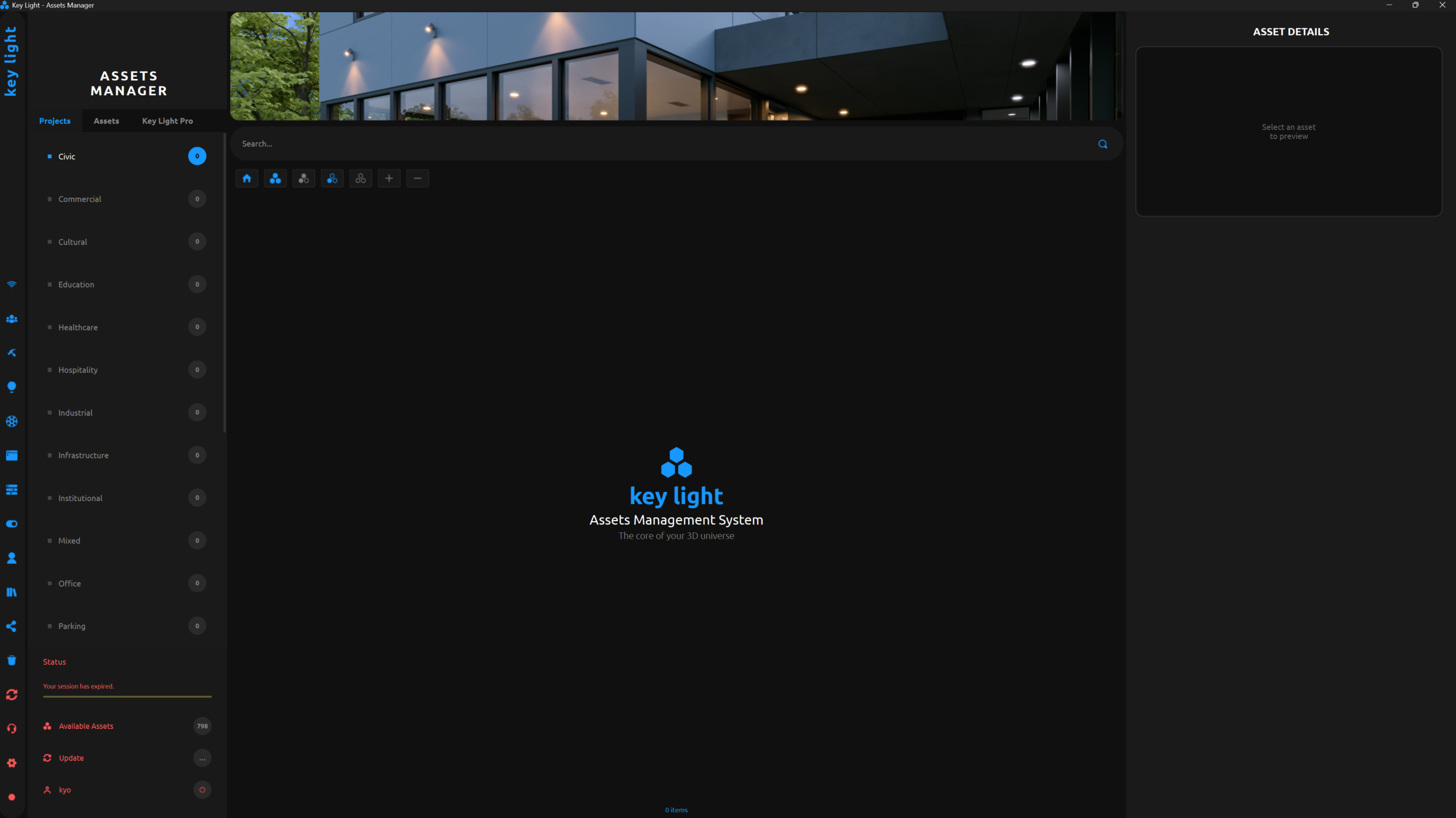
Vertical toolbar
The vertical toolbar, 45 px wide, sits on the far left side of the window. It includes the Key Light logo and all the buttons for accessing modules and settings. It can be toggled on or off with Ctrl+T.
Buttons are visually divided into two groups by color: blue icons for primary actions, and red icons for settings and advanced tools. The Trash button displays a red badge with the number of items when it isn’t empty.
Online
Current session connection status
Team
Team management and collaboration
Report
Generate reports for your asset library
Flux
Opens the IES file viewer
Iris
Opens the 360° VR viewer for images and HDRIs
Local Backup
Opens the local backup manager for your library
Cloud Backup
Access cloud backups
Always On Top
Keeps the Key Light window above all others. The icon toggles between active and inactive states.
Account Settings
User profile, password changes, and logout
Collections Manager
Manage asset collections
AI Powered
AI-assisted features
Trash
Opens the trash dialog. Shows a red badge when it contains items.
Synchronize
Sync your library with external sources
Support
Access support and documentation
Settings
General Key Light settings
Dark UI Theme
Toggle the app’s visual theme
Assets Manager / three tabs
The Assets Manager panel (350 px wide) is the main navigation column. It can be toggled with Ctrl+D. It includes three tabs that organize your library in different ways.
Projects tab
Organizes your assets by architectural or production project type. The available categories follow a predefined, project-oriented structure:
Civic – Commercial – Cultural – Education – Healthcare – Hospitality – Industrial – Infrastructure – Institutional – Mixed – Office – Parking – Public Space – Recreation – Religious – Residential – Retail – Sports – Transport – Urban
Each category can be expanded to reveal its subcategories. Clicking on a category or subcategory filters the content area to show only the relevant assets. Badges display the number of assets within each item.
Assets tab
Organizes your library by asset type. At the top, it also includes four special collections:
Most Frequent · Favorites · Random · Shared Assets
The available asset type categories are:
2D Vegetation – 3D Assets – Atlases – Audio – Blueprints – Decals – Displacement – Environments – FX – HDRI – Imperfections – Lighting – Materials – Media – Presets – Proxies – Scans – Scatter – Shaders – Textures
Key Light Pro tab
Browse your asset library through your actual disk folder structure using the built-in file explorer (Key Light Pro). You can expand and collapse folders up to five levels deep, view the asset count per folder, and drag assets directly from the explorer into categories in the panel.
At the bottom, the Assets Manager displays a status bar with the active user name and current session.
Central Content Area
The central area is your main workspace. It displays the assets from the section selected in the Assets Manager, arranged in a grid with 224×180 px thumbnails.
Asset display
• Each asset appears as a card with its thumbnail, name, and status badges.
• A single click selects the asset and opens its details in the right panel.
• A single click on the preview area opens the asset in a full-screen Lightbox.
• The search field in the top bar filters content in real time as you type.
Selection and actions
• Right-clicking an asset opens a context menu with the available actions.
• You can select multiple assets at once, and Ctrl+A selects all.
• Actions from the context menu apply to all selected assets simultaneously.
Context menu (right-click)
Right-clicking an asset in the content area opens the context menu. The available options vary depending on the asset type and the current context:
| Open with Flux | Available for .ies files only |
| Open with Iri | Available for images, HDRIs, PSD, EXR, and WebP files |
| Remove from ‘[subcategory] | Removes the asset from the active subcategory |
| Move to Trash | Moves the asset to the trash (recoverable). When multiple assets are selected, it shows the total count. |
Details panel
The details panel (580 px wide) is located on the right side. It can be toggled with Ctrl+P. When an asset is selected, it displays its full information and allows you to edit it.
Media preview
The top section of the panel displays the asset preview. Key Light supports two types of preview:
Image view
• Displays the asset thumbnail with rounded corners.
• If no preview is available, a colored placeholder is shown.
• A single click opens the full-screen Lightbox.
Inline video player
• Video files (.mp4, .avi, .mov, .mkv, .webm) play directly in the panel, muted and on loop.
• In the Lightbox, videos play with sound.
Information fields
| Field | Description |
| ID | Unique identifier of the asset within Key Light |
| Name | Asset name as registered in the library |
| Location | Tab and section where the asset is located (e.g., “Nexus, Projects Tab”) |
| Type | Asset type: 3D model, texture, HDRI, audio, etc. |
| Format | File format or extension (e.g., .fbx, .png, .hdr) |
| Resolution | File resolution expressed as width × height in pixels |
| Size | File size on disk, expressed in B, KB, MB, or GB |
| Compatibility | Software or 3D engines the asset is compatible with |
Track button
Below the information fields, you’ll find the Track button. It lets you register or track the asset within the context of the active project.
Related assets
At the bottom of the panel, a Related Assets section is automatically displayed, showing up to 8 assets related to the selected one. These appear as 125 × 85 px cards with a thumbnail and name. Clicking on any of them selects it instantly and takes you to it.
Integrated modules
Key Light includes specialized modules that open as standalone windows from the toolbar, The main module is Nexus, accessible from the Content Panel toolbar.
Nexus – Project Browser
• Nexus is the built-in project explorer and manager in Key Light.
• It opens as a standalone window at 1400×850 px and lets you scan system folders, browse detected projects and assets, and generate thumbnails for your library.
• It serves as the main entry point for bringing assets from disk into Key Light.
Flux – IES Visualizer
• A specialized viewer for IES light profile files (.ies).
• It can be opened from the **Flux** button in the toolbar or via **“Open with Flux”** in the context menu for .ies files.
Backup – Backup manager
• Set up source folders to include in your local backup.
• Displays real-time copy progress for each folder.
• It can be opened from the Local Backup button in the toolbar.
Deep Layers – Folder structure
• A visual folder structure manager with an editable tree of up to five levels.
• It lets you define, preview, and apply directory structures to your library.
• Accessible from the Key Light Pro tab in the Assets Manager.
Lightbox
• A full-screen preview mode for images and videos.
• Videos play with audio when viewed in the Lightbox.
• It opens with a double click on any asset in the content area.
Iris – VR Viewer
• A 360° and VR image viewer for formats like standard images, HDRIs, PSD, EXR, and WebP.
• It can be opened from the toolbar or via “Open with Iris” in the context menu.
Trash – Recycle bin
• Displays all deleted assets with their thumbnail, name, and type.
• Lets you search within the trash, restore selected items, or empty it completely.
• It can be opened from the Trash button in the toolbar.
Nexus, Flux, Iris, Deep Layers, Local Backup, and Trash are standalone windows that can run alongside the main Key Light window at the same time. Each module has its own lifecycle and automatically closes when the session ends.