Trash — Deleted items bin
Your second chance in Key Light. Anything you delete assets goes here before being permanently removed. Restore everything anytime with all original properties intact.
Open the Trash
The Trash button is located in Key Light’s vertical toolbar. The window opens centered over the main interface and is non-modal, so you can keep working while it’s open. The toolbar icon turns red when there are items in the Trash and shows a notification, then returns to its neutral state when empty.
Trash Interface
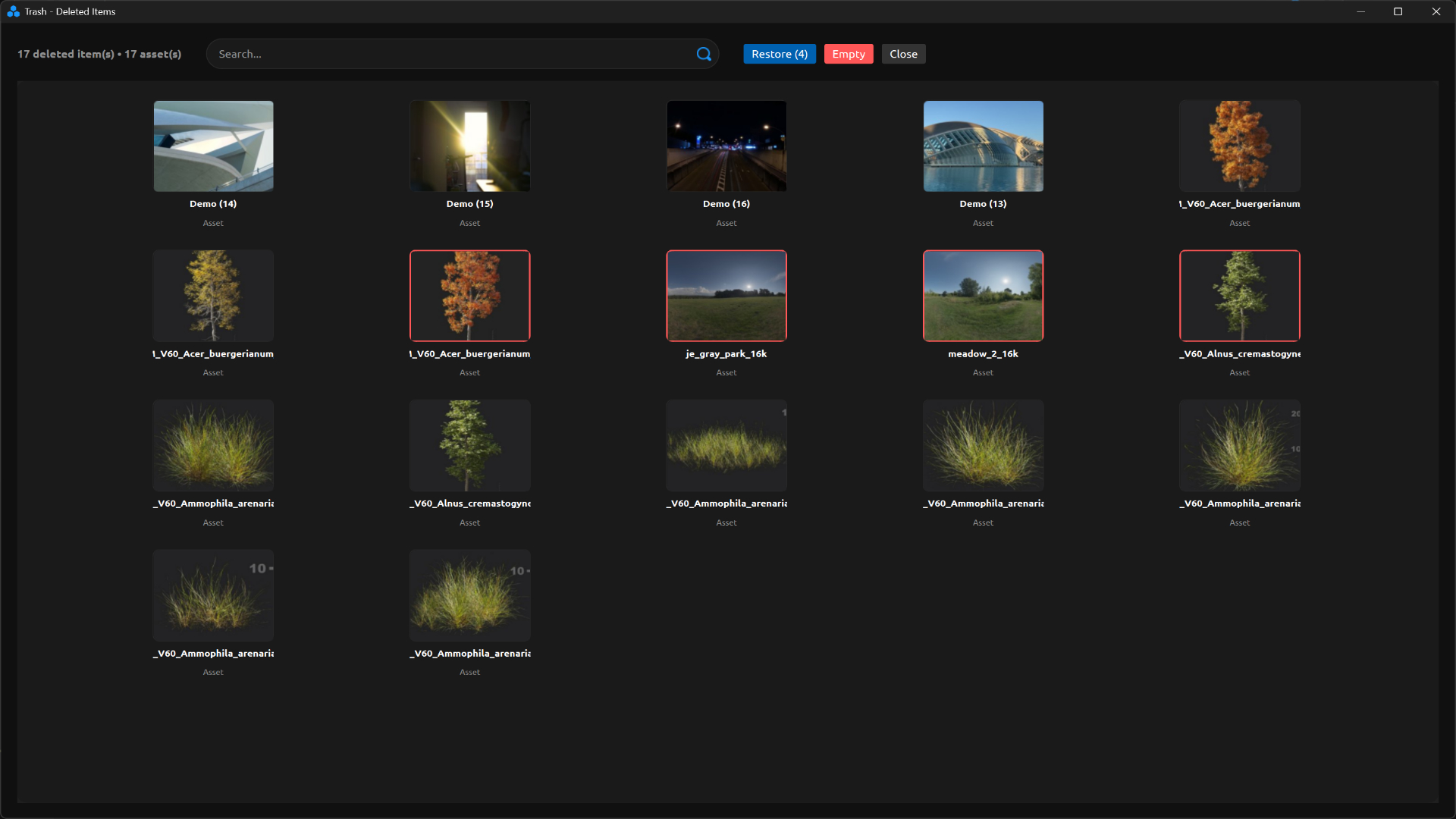
Trash Interface Specification
| Element | Description |
|---|---|
| Counter & Breakdown | Located in the top-left of the header. Displays total deleted items and a typed breakdown using the format: “N deleted assets. Only item types with a value ≥ 1 are rendered. |
| Search Field | Input field with leading search icon. Applies real-time filtering to the grid based on text input. |
| Restore Button | Disabled by default. Becomes enabled when ≥ 1 item is selected. Label updates dynamically to: “Restore (N)”, where N = number of selected items. |
| Empty Button | Default state: disabled (empty trash). Active state: enabled and highlighted in red when there is ≥ 1 item. This action permanently deletes all items (irreversible). However, it remains present in Nexus. |
| Card Grid | Scrollable container displaying item cards. Fixed card size: 160×180 px. Maximum layout: 5 columns. Each card includes a preview area (150×120 px) with 8 px border radius. It has dynamic scrolling. |
Sorting
Items are sorted by deletion date in descending order—the most recently deleted item appears first (top-left).
The grid fills left to right, row by row, with a maximum of 5 columns.
Search Behavior
Enter an asset name in the search field to filter results.
Matching items are isolated and displayed in the grid in real time.
Item Selection
| Action | Behavior |
|---|---|
| Click | Selects a single item. Clears any previous selection. |
| Ctrl + Click | Toggles individual selection. Adds or removes the item without affecting others. |
| Shift + Click | Selects a range between the last selected item and the current one (based on grid order). Replaces previous selection. |
| Click on Empty Area | Clears the current selection. |
| Drag on Empty Area | Initiates rubber-band selection (rectangular selection). |
Rubber-Band Selection
Drag from an empty area within the grid to draw a selection rectangle. The rectangle uses a cyan border (1.5 px) with a semi-transparent fill.
Any card intersecting the rectangle is immediately selected. Selection updates continuously as the cursor moves.
If the cursor approaches the top or bottom edge (threshold: 50 px), the grid auto-scrolls.
Holding Ctrl during the drag adds items to the existing selection instead of replacing it.
On mouse release, the rectangle disappears and selected items remain highlighted with a red border.
Restore Items
| Step | Description |
|---|---|
| 1. Select Items | Use any combination of selection methods. The button updates to display “Restore (N)”. |
| 2. Click Restore | Triggers a confirmation dialog: “Restore N item(s) from trash?” with Yes / No options. |
| 3. Restoration Process | Key Light reinserts the items into the library with all original properties preserved. |
| 4. Grid Update | Restored items are removed from the Trash. The counter and Empty button update accordingly. |
Empty Trash
| Step | Description |
|---|---|
| 1. Click Empty | Available only when the Trash contains items (button in active/red state). |
| 2. Warning Dialog | Displays: “Permanently remove all N item(s) from trash? This action cannot be undone.” Default option is No — user must explicitly confirm Yes. |
| 3. Empty Execution | All Trash records are removed from the database. The grid updates to the empty state. The Empty button becomes disabled (grey). |
Important
The Empty action removes only Key Light records. Physical files on disk are not deleted. Items removed from the Trash cannot be restored within Key Light. Deleted assets in the Trash remain indexed in Nexus, so they can be manually reorganized at any time.
What the Trash Does NOT Do
- Does not delete physical files on disk (neither when moving items nor when emptying the Trash).
- Has no item limit — it can handle hundreds of entries without issues.
- Does not auto-empty based on time or item count.